Framebuffer
We are taking a detour, to learn more about framebuffers. This section is written as a jupyter notebook, which is an interactive document with executable code, which can output values and images.
You can run this either in spyder or in jupyter. If using spyder, open “src/modelviewprojection/notebooksrc/framebuffer.py”, if using jupyter notebook, using jupyter, open “notebook/framebuffer.ipynb”
We will be using a fake “framebuffer”, just a python class to represent a framebuffer, and see how it works.
# Copyright (c) 2025 William Emerison Six
#
# This program is free software; you can redistribute it and/or
# modify it under the terms of the GNU General Public License
# as published by the Free Software Foundation; either version 2
# of the License, or (at your option) any later version.
#
# This program is distributed in the hope that it will be useful,
# but WITHOUT ANY WARRANTY; without even the implied warranty of
# MERCHANTABILITY or FITNESS FOR A PARTICULAR PURPOSE.  See the
# GNU General Public License for more details.
#
# You should have received a copy of the GNU General Public License
# along with this program; if not, write to the Free Software
# Foundation, Inc., 59 Temple Place - Suite 330,
# Boston, MA 02111-1307, USA.


import warnings

import modelviewprojection.mathutils as mu
The module below is our software implementation of a framebuffer, we will use the name “sr” for “software rendering”:
import modelviewprojection.softwarerendering as sr

# turn warnings into exceptions
warnings.filterwarnings("error", category=RuntimeWarning)
Make a framebuffer, which is just a rectangular region of values. We use keyword arguments to specify that the framebuffer should have a width of 100, and a height of 100
# Show initial random framebuffer
fake_fb: sr.FrameBuffer = sr.FrameBuffer(width=100, height=100)
fake_fb.show_framebuffer()

Well, that looks bad, as there is a bunch of random values for colors in the framebuffer.
Draw a triangle in this framebuffer, using screenspace coordinates
# Example: draw a white triangle
fake_fb.draw_filled_triangle(
    mu.Vector2D(50, 50),
    mu.Vector2D(50, 70),
    mu.Vector2D(70, 70),
    color=sr.WHITE,
)
fake_fb.show_framebuffer()

Whoops! That looks like trash. We should change the background to have all one color. That’s what clear_framebuffer does
# Clear to red and show
fake_fb.clear_color = sr.RED
fake_fb.clear_framebuffer()
fake_fb.show_framebuffer()

I don’t really want to draw on Red, let’s switch it to black
# Clear to black and show
fake_fb.clear_color = sr.BLACK
fake_fb.clear_framebuffer()
fake_fb.show_framebuffer()
Let’s clear again for no reason, and draw a white triangle in screenspace.
# Example: draw a white triangle
fake_fb.clear_framebuffer()
fake_fb.draw_filled_triangle(
    mu.Vector2D(50, 50),
    mu.Vector2D(50, 70),
    mu.Vector2D(70, 70),
    color=sr.WHITE,
)
fake_fb.show_framebuffer()
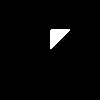
Without clearing (as we want to keep the white triangle, let’s draw a red triangle at a different location in screenspace
# draw a red triangle
fake_fb.draw_filled_triangle(
    mu.Vector2D(50, 50),
    mu.Vector2D(30, 50),
    mu.Vector2D(30, 30),
    color=sr.RED,
)
fake_fb.show_framebuffer()

Make a larger framebuffer
# Show initial random framebuffer
fake_fb400: sr.FrameBuffer = sr.FrameBuffer(width=400, height=400)
fake_fb400.show_framebuffer()

# Clear to black and show
fake_fb400.clear_framebuffer()
fake_fb400.show_framebuffer()
# Example: draw a white triangle
fake_fb400.clear_framebuffer()
fake_fb400.draw_filled_triangle(
    mu.Vector2D(50, 50),
    mu.Vector2D(50, 70),
    mu.Vector2D(70, 70),
    color=sr.WHITE,
)
fake_fb400.show_framebuffer()

fake_fb400.draw_filled_triangle(
    mu.Vector2D(50, 50),
    mu.Vector2D(30, 50),
    mu.Vector2D(30, 30),
    color=sr.RED,
)
fake_fb400.show_framebuffer()
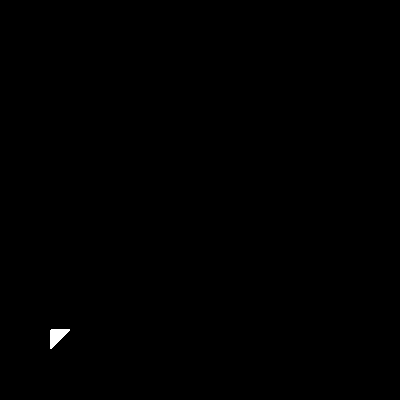
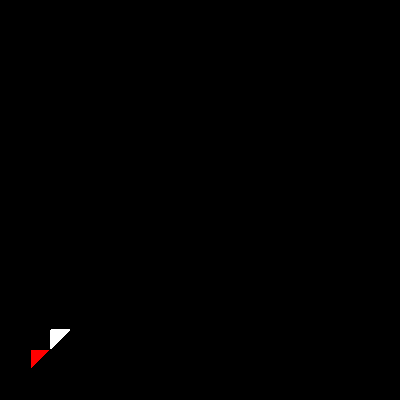
It makes sense that the triangles are in the lower left, OpenGL screenspace starts with 0,0 in the bottom left; the upper right is (width, height)