NDC
# Copyright (c) 2025 William Emerison Six
#
# This program is free software; you can redistribute it and/or
# modify it under the terms of the GNU General Public License
# as published by the Free Software Foundation; either version 2
# of the License, or (at your option) any later version.
#
# This program is distributed in the hope that it will be useful,
# but WITHOUT ANY WARRANTY; without even the implied warranty of
# MERCHANTABILITY or FITNESS FOR A PARTICULAR PURPOSE.  See the
# GNU General Public License for more details.
#
# You should have received a copy of the GNU General Public License
# along with this program; if not, write to the Free Software
# Foundation, Inc., 59 Temple Place - Suite 330,
# Boston, MA 02111-1307, USA.
Drawing in NDC
Similar to the Framebuffer code, this is a notebook in which we will only use software to draw pictures of a framebuffer. We use Normalized Device Coordinates instead of screenspace, and by the end, we will make an animation.
import warnings

import IPython.display
import moviepy
import numpy as np

import modelviewprojection.mathutils as mu
import modelviewprojection.softwarerendering as sr

# turn warnings into exceptions
warnings.filterwarnings("error", category=RuntimeWarning)
Make Framebuffer
Like in the Framebuffer notebook, we initialize a framebuffer in software.
# Show initial random framebuffer
fake_fb: sr.FrameBuffer = sr.FrameBuffer(width=400, height=300)
fake_fb.show_framebuffer()

Clear Framebuffer
We clear it so that we have a blank slate.
# Clear to black and show
fake_fb.clear_framebuffer()
fake_fb.show_framebuffer()
Problem 2
Make a new picture below where the triangle is translated 0.3 units in NDC to the left
Create function from NDC to screenspace
Create a function to convert from NDC to screen space. We compose 4 functions to achieve this
First, translate x to the right one unit, y up on unit, to make the bottom left of the NDC region be at (0,0)
Second, since the NDC square is two units wide, scale by 1/2, to make it have a width of 1, and a height of 1.
Third, scale by the width and height of the framebuffer.
Fourth, translate -1/2 and -1/2, to make (0,0) of NDC map to the center of the pixel at (0,0)
Inspired by “Fundamentals of Computer Graphics, Third Edition”, by Shirley and Marshner, page 60
ndc_to_screen: mu.InvertibleFunction = mu.compose(
    [
        mu.translate(mu.Vector2D(-0.5, -0.5)),
        mu.scale_non_uniform_2d(fake_fb.width, fake_fb.height),
        mu.scale_non_uniform_2d(0.5, 0.5),
        mu.translate(mu.Vector2D(x=1.0, y=1.0)),
    ]
)
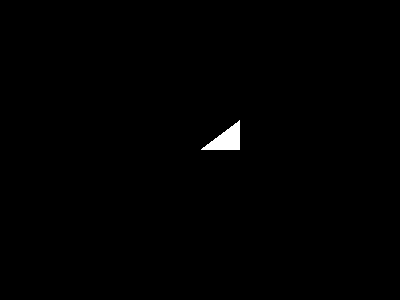
Create NDC data for triangle
Create a list of Vectors to represent the three vertices of the triangle.
# Example: draw a white triangle

triangle_in_NDC: list[mu.Vector] = [
    mu.Vector2D(0.0, 0.0),
    mu.Vector2D(0.2, 0.0),
    mu.Vector2D(0.2, 0.2),
]
Convert the NDC Vectors to Screenspace
For each vector, apply the function
triangle_in_screen: list[mu.Vector] = [
    ndc_to_screen(x) for x in triangle_in_NDC
]
print(triangle_in_screen)
[Vector2D(x=199.5, y=149.5), Vector2D(x=239.5, y=149.5), Vector2D(x=239.5, y=179.5)]
fake_fb.clear_framebuffer()
fake_fb.draw_filled_triangle(
    triangle_in_screen[0],
    triangle_in_screen[1],
    triangle_in_screen[2],
    color=(255, 255, 255),
)
fake_fb.show_framebuffer()
Move the Triangle in NDC
Now, we want to make the triangle move to a different position. We will use compose to first translate the triangle by 0.5 units of NDC up, and then take the result and convert it from NDC to screenspace
move: mu.InvertibleFunction = mu.translate(mu.Vector2D(0, 0.5))

triangle_in_screen = [
    mu.compose([ndc_to_screen, move])(x) for x in triangle_in_NDC
]
print(triangle_in_screen)
[Vector2D(x=199.5, y=224.5), Vector2D(x=239.5, y=224.5), Vector2D(x=239.5, y=254.5)]
fake_fb.clear_framebuffer()
fake_fb.draw_filled_triangle(*triangle_in_screen, color=(255, 255, 255))
fake_fb.show_framebuffer()

frames = []

sixty_fps_times_2_sec = 120

# Create 10 frames with simple animation
for i in range(sixty_fps_times_2_sec):
    fake_fb.clear_framebuffer()
    move: mu.InvertibleFunction = mu.translate(
        mu.Vector2D(0, 0.5 * (np.sin(np.pi / 60.0 * float(i))))
    )

    triangle_in_screen = [
        mu.compose([ndc_to_screen, move])(x) for x in triangle_in_NDC
    ]
    fake_fb.draw_filled_triangle(*triangle_in_screen, color=(255, 255, 255))

    frames.append(fake_fb.framebuffer)
Now that we have the frames, we just need to save them to a video. The details of how this works is a black box to use, it doesn’t really matter for our understanding.
np_frames = [np.array(img) for img in frames]

frames_np = [np.array(img) for img in frames]
clip = moviepy.ImageSequenceClip(frames_np, fps=60)
clip.write_videofile("animation.mp4", codec="libx264")

IPython.display.Video("animation.mp4", embed=True)
MoviePy - Building video animation.mp4.
MoviePy - Writing video animation.mp4
frame_index: 0%| | 0/120 [00:00<?, ?it/s, now=None]
frame_index: 29%|█████▎ | 35/120 [00:00<00:00, 348.89it/s, now=None]
frame_index: 70%|████████████▌ | 84/120 [00:00<00:00, 427.62it/s, now=None]
MoviePy - Done !
MoviePy - video ready animation.mp4